
A customer portal that isn’t connected to your other business systems creates more work, not less. Your team ends up manually copying data between the portal and your CRM. Invoices get generated in your accounting software but never appear in the portal. A support ticket is resolved in your help desk but the customer’s portal still shows it as open.
Integrations are what turn a standalone portal into the central hub of your customer experience. When your portal connects to the tools you already use, data flows automatically. Customers see real-time, accurate information. Your team enters data once. Nothing falls out of sync.
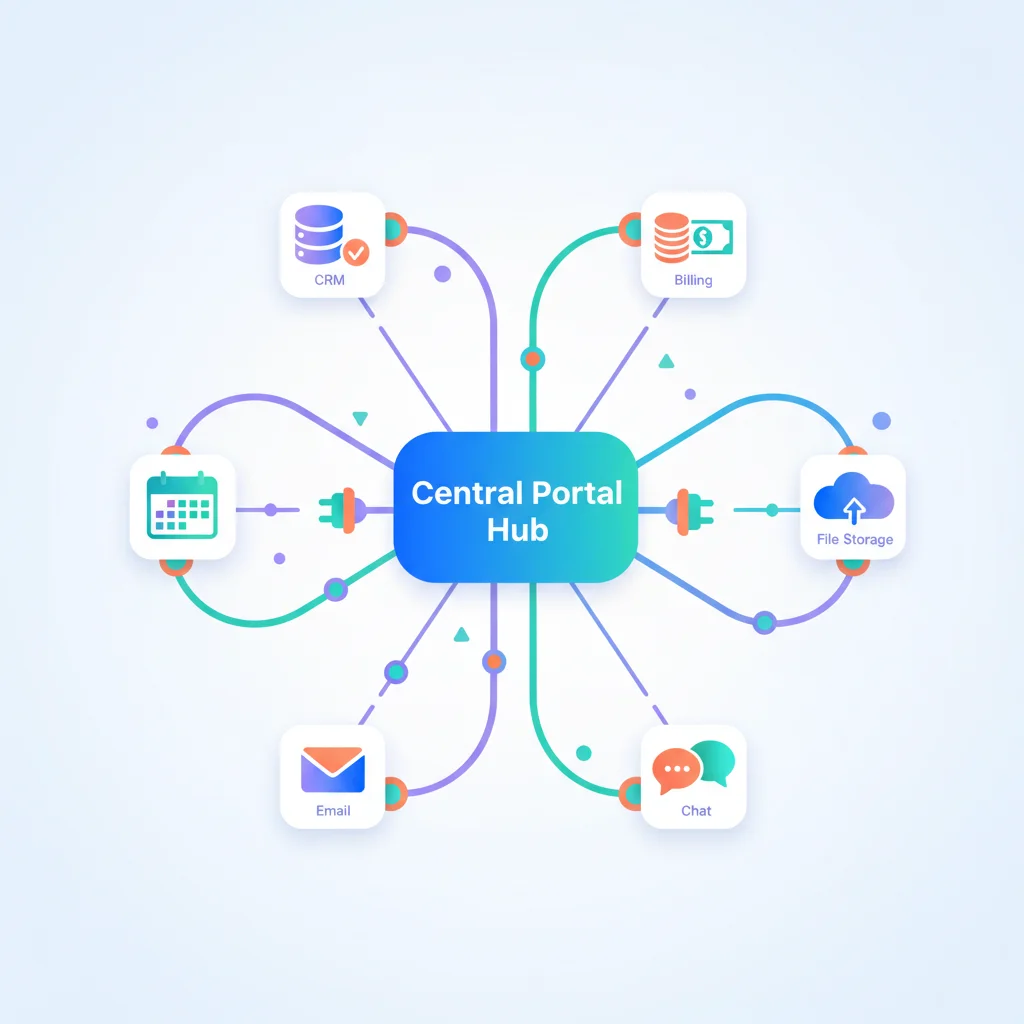
Why Integrations Matter
Single source of truth
Without integrations, the same information lives in multiple systems and inevitably falls out of sync. A customer’s address is updated in the CRM but not in the portal. An invoice is marked paid in QuickBooks but shows as outstanding in the portal. Integrations ensure that data entered once is reflected everywhere.
No double entry
Your team already uses a CRM, an accounting tool, a help desk, and a project management platform. If the portal doesn’t integrate with these, it becomes another system to update manually. That’s a recipe for missed updates, human error, and team frustration. Integrations eliminate redundant data entry.
Real-time accuracy
Customers expect the portal to show current information. If they make a payment and the portal takes 24 hours to reflect it, they’ll call your office to confirm. Real-time integrations mean the portal is always up to date, which builds trust and reduces support inquiries.
Automation potential
Integrations unlock automation workflows: a new customer in your CRM automatically gets a portal account. A payment in Stripe automatically updates their billing status. A closed ticket in Zendesk automatically triggers a satisfaction survey in the portal. These automations reduce manual work and improve consistency.
Common Integration Categories
CRM (Customer Relationship Management)
Your CRM is the system of record for customer data. Integrating it with your portal means customer information, contact details, account history, and relationship data are always in sync.
Popular platforms: Salesforce, HubSpot, Zoho CRM, Pipedrive
What it enables:
- Customer profile data flows automatically to the portal
- Portal activity (logins, document views, support requests) is logged back in the CRM
- Sales teams see portal engagement alongside their pipeline data
- New CRM contacts can automatically receive portal invitations
For a deeper dive, see our guide on CRM integration for customer portals.
Billing and accounting
Customers frequently visit portals to check invoices, make payments, and review financial history. Integrating your billing or accounting system means this data is always available and accurate.
Popular platforms: Stripe, QuickBooks, Xero, FreshBooks, Wave
What it enables:
- Invoices generated in your accounting software appear automatically in the portal
- Payments made through the portal are recorded in your accounting system
- Real-time balance and payment status for customers
- Automated payment reminders through the portal’s notification system
Help desk and support
If you use a dedicated help desk tool, integrating it with your portal means customers can submit and track tickets without leaving the portal, and your support team continues working in their familiar tool.
Popular platforms: Zendesk, Freshdesk, Intercom, HelpScout, Jira Service Management
What it enables:
- Portal ticket submission creates tickets in your help desk
- Status updates in the help desk are reflected in the portal
- Knowledge base content can be shared between systems
- Ticketing works seamlessly across both platforms
File storage
Most businesses already store files in cloud storage. Integrating these services with your portal means you don’t have to duplicate files — the portal surfaces files from your existing storage with proper access controls.
Popular platforms: Google Drive, Dropbox, OneDrive / SharePoint, Box, Amazon S3
What it enables:
- Files uploaded to your storage system appear in the customer’s portal
- Document management in the portal is backed by your existing storage infrastructure
- Permission-based access to shared folders and files
- No duplicate file storage or manual upload/download processes
Communication
Integrating communication tools means portal activity generates notifications in the channels your team already uses, and external conversations can be linked to portal records.
Popular platforms: Slack, Microsoft Teams, Gmail / Google Workspace, Outlook / Microsoft 365
What it enables:
- New portal activity (ticket submitted, document uploaded, approval completed) triggers Slack or Teams notifications for your team
- Email notifications sent from the portal are tracked and logged
- Team members can respond to portal messages from their communication tool of choice
Calendar and scheduling
For businesses that schedule meetings, appointments, or service calls, calendar integration keeps the portal and your scheduling system in sync.
Popular platforms: Google Calendar, Outlook Calendar, Calendly, Acuity Scheduling
What it enables:
- Customers book appointments through the portal, which appear on your team’s calendar
- Upcoming appointments and meetings are visible in the portal
- Automated reminders reduce no-shows
- Calendar changes sync in both directions
E-signature
For businesses that need signed documents from clients, e-signature integration streamlines the process within the portal experience.
Popular platforms: DocuSign, HelloSign (Dropbox Sign), PandaDoc, Adobe Sign
What it enables:
- Documents uploaded to the portal can be sent for signature without leaving the platform
- Signed documents are automatically stored in the portal’s document library
- Signature status is tracked alongside other project milestones
- Clients can review and sign documents from within the portal experience
Payment processing
Beyond accounting integration, direct payment processor integration enables real-time payments within the portal.
Popular platforms: Stripe, PayPal, Square, Braintree
What it enables:
- One-click payments within the portal
- Saved payment methods for recurring customers
- Automatic payment confirmation and receipt generation
- Integration with billing and payments features
Integration Methods
Not all integrations are built the same. Understanding the methods helps you evaluate what your portal platform supports.
Native integrations
Pre-built connections maintained by the portal vendor. These are typically the most reliable, easiest to set up, and best supported. Look for native integrations with the specific tools you use.
Middleware / iPaaS
Platforms like Zapier, Make (formerly Integromat), and Workato connect applications that don’t have direct native integrations. They work through triggers and actions: “When X happens in system A, do Y in system B.” Great for simpler integrations and connecting niche tools.
REST APIs
Most modern portal platforms offer APIs that let developers build custom integrations. This provides the most flexibility but requires development resources. For details on working with portal APIs, see our API integration guide.
Webhooks
Real-time notifications from one system to another when events occur. A webhook fires when a customer submits a ticket, makes a payment, or uploads a document, and the receiving system takes action. Webhooks are lightweight and fast, but they’re one-directional — they push data, they don’t pull it.
Embedded / iFrame
Some integrations work by embedding one application within another. A payment form from Stripe embedded in your portal, or a calendar widget from Calendly. These are simple but limited in depth — the embedded tool and the portal don’t share data deeply.
Evaluating a Portal Platform’s Integration Capabilities
When choosing a portal platform, integrations should be a primary evaluation criterion. Ask these questions:
| Question | Why It Matters |
|---|---|
| How many native integrations are available? | More native integrations means less custom development |
| Does it integrate with the specific tools we use? | A hundred integrations are worthless if they don’t include your CRM and accounting software |
| Is there a documented REST API? | Enables custom integrations when native options don’t exist |
| Does it support webhooks? | Enables real-time event-driven workflows |
| Is there Zapier / Make compatibility? | Opens up thousands of additional connections without development |
| How is authentication handled? | OAuth 2.0 is the standard; API keys are simpler but less secure |
| What are the API rate limits? | Important for high-volume data sync |
| Is there a sandbox / test environment? | Essential for building and testing integrations safely |
Common Integration Pitfalls
Underestimating data mapping
Your CRM calls it “Company Name.” Your accounting software calls it “Client.” Your portal calls it “Organization.” Data mapping — making sure fields align across systems — is the unglamorous but critical work that makes integrations actually useful.
Ignoring sync conflicts
What happens when a customer’s address is updated in both the CRM and the portal at the same time? You need conflict resolution rules. Typically, one system is designated as the “source of truth” for each data type.
Over-integrating
Not everything needs to be connected. Integrating eight systems creates complexity, maintenance burden, and more potential failure points. Start with the 2-3 integrations that address your biggest pain points and expand from there.
Neglecting error handling
Integrations fail. APIs go down, rate limits are hit, data formats change. Build monitoring and alerting so your team knows when an integration breaks, and have fallback processes for critical workflows.